Export
Export your reviewed results as a spreadsheet to analyze in R, Excel, or any other tool.
1. Export a single recording
To export just the recording you're reviewing, click the download button next to Mark reviewed.
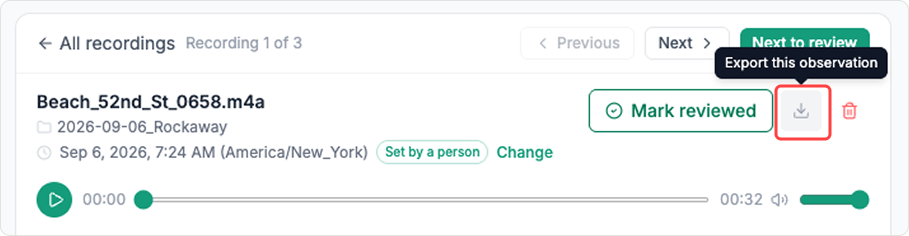
You'll be brought to the Export page, where you can specify more details.
2. Export a session
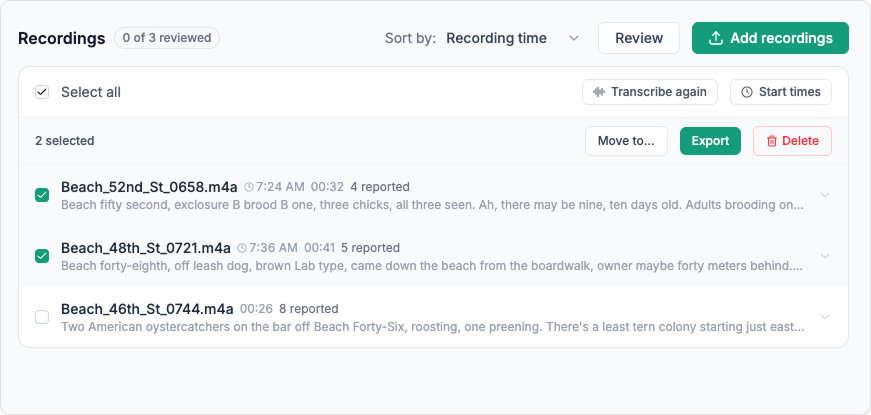
On the session page, select Select all and click Export. Or, you can select the individual recordings you'd like to export.
3. Export a project
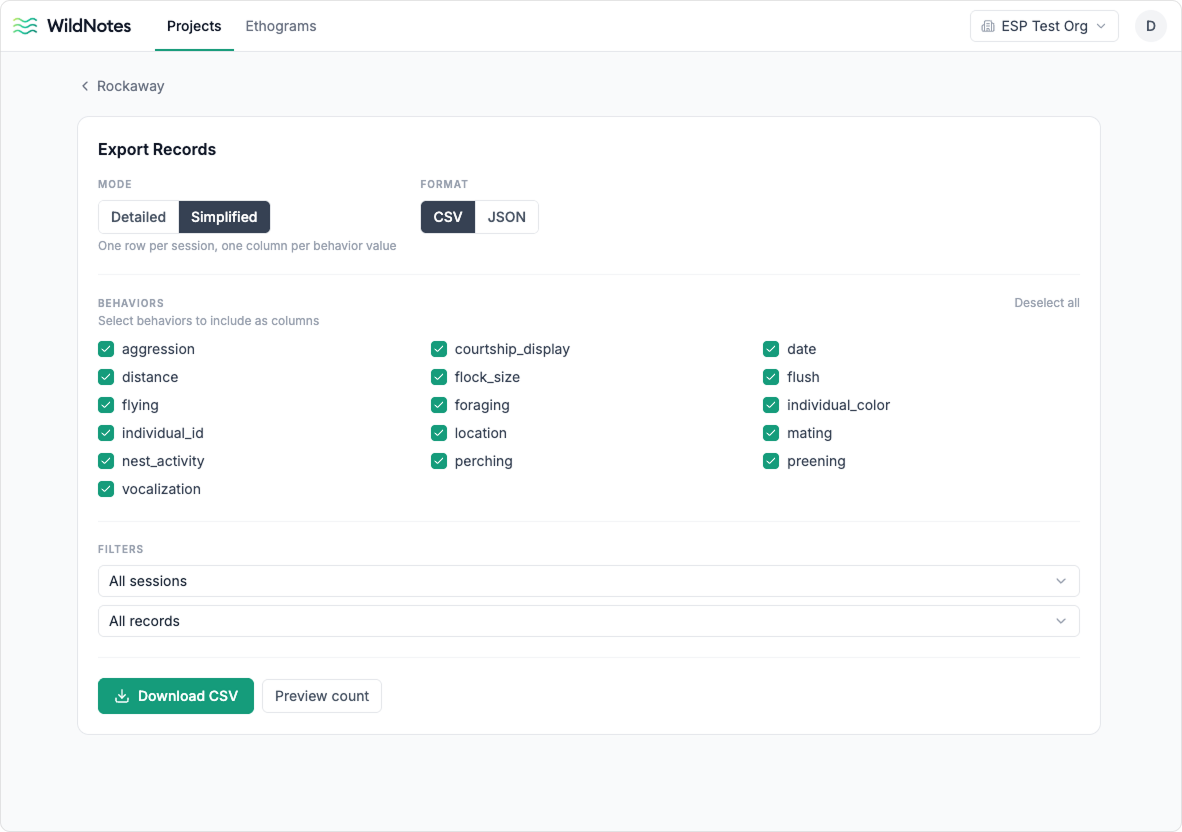
To export a whole project, click the Export button next to Edit project. Then, you can filter to Reviewed only or Unreviewed only, or keep All records. The number of records that match shows beside Download, and follows your filters. When none match, Download is unavailable.
Choose a mode
- Detailed: one row per recording. Columns for the recording's ID, its original file name, the transcript, duration, timestamp, session, review state, and then one group of columns per behavior: present, value, and optionally confidence and the evidence quote. Choose the columns you want.
- Simplified: one row per session, with the session's name, date, and the recordings' file names, then one column per behavior holding its values.
Use Detailed to check WildNotes' work against the transcript, or to analyze recording by recording. Use Simplified for a quick summary of each session.